Difference between revisions of "Cmr guide"
| (2 intermediate revisions by the same user not shown) | |||
| Line 35: | Line 35: | ||
#*For Linux systems, first install Docker Engine then proceed to install Docker Compose. | #*For Linux systems, first install Docker Engine then proceed to install Docker Compose. | ||
#*You can download and install Docker-Compose for Mac, Windows or Linux from Docker-Compose Installation Webpage. | #*You can download and install Docker-Compose for Mac, Windows or Linux from Docker-Compose Installation Webpage. | ||
| − | |||
| − | |||
| − | |||
| − | |||
#Enable the Linux Subsystem (on Windows) | #Enable the Linux Subsystem (on Windows) | ||
#*First you need to setup the Windows Subsystem for Linux (WSL) | #*First you need to setup the Windows Subsystem for Linux (WSL) | ||
| Line 70: | Line 66: | ||
#*docker-compose will print multiple lines on the screen telling you what it’s doing. One of the lines will have a link. Copy that link and paste it in your browser to open the CMR. <br> [[File:4.png]] | #*docker-compose will print multiple lines on the screen telling you what it’s doing. One of the lines will have a link. Copy that link and paste it in your browser to open the CMR. <br> [[File:4.png]] | ||
#Open your browser and paste the link. | #Open your browser and paste the link. | ||
| + | == Authenticating With Your TACC Account == | ||
| + | #Get a Tapis/TACC account | ||
| + | #*The Tapis/TACC software platform aims to help researchers more easily leverage powerful supercomputers and integrate and manage data from different and distant sources. | ||
| + | #*You can create an Agave account on Agave Platform Webpage. | ||
| + | #*You can create a Tapis/TACC account on TACC User Portal: https://portal.tacc.utexas.edu/account-request | ||
| + | == Using the CMR == | ||
#*You will get the following display from Jupyter Notebook: <br> [[File:5.png]] | #*You will get the following display from Jupyter Notebook: <br> [[File:5.png]] | ||
#*Click on model.ipynb. This will open this window. <br> [[File:6.png]] | #*Click on model.ipynb. This will open this window. <br> [[File:6.png]] | ||
| Line 93: | Line 95: | ||
#*Job history: serves as a debugging tool. | #*Job history: serves as a debugging tool. | ||
#*List job output: lists the outputs of the job. Look for the file that has an extension of “.out” and you can download the see the output. | #*List job output: lists the outputs of the job. Look for the file that has an extension of “.out” and you can download the see the output. | ||
| − | #*Abort: to stop the job. <br> [[File: | + | #*When a specific job is highlighted under "List all jobs" you can click "Job history" to see the Job's history. You can also click "List job output" to see the files on the remote machine. Selecting a file within this output and clicking download will download that file. If the file selected is "output.tgz" that file will automatically be untarred and its contents placed in $HOME/work/run_dir. |
| + | #*Abort: to stop the job. <br> [[File:Downloading.png|800px]] | ||
#*<u>Build Tab:</u> <br> [[File:13.png]] | #*<u>Build Tab:</u> <br> [[File:13.png]] | ||
Latest revision as of 22:29, 3 March 2023
CMR (Coastal Model Repository)
Introduction
CMR is a cloud-ready repository of open-source coastal modeling tools which enable scientists and engineers to use high performance computers to study a variety of physical and ecological processes. The system leverages Jupyter notebooks, Docker, Singularity, and the Agave Platform to create a platform for running jobs and analyzing data in a way that is intuitive, repeatable, and collaborative.
The system is built upon the following:
- Jupyter Notebook: to create a customizable, interactive tool for science discoveries and engineering analyses.
- Agave Framework: to simplify sharing of data and accessing high performance computing resources.
- Singularity: to deploy and run simulation codes on cloud-enabled resources.
- Docker: to construct the images for singularity and to deploy the Jupyter notebooks to user machines and workstations.
The integration of these technologies provides an intuitive and easy-to-use way for users to interact both with high performance computers and with each other.
The system incorporates several opensource numerical models commonly used by the coastal science and engineering community:
- SWAN (Simulating WAve Nearshore): a third-generation wave model, developed at Delft University of Technology, that computes random, short-crested wind-generated waves in coastal regions and inland waters.
- FUNWAVE-TVD: is the Total Variation Diminishing (TVD) version of the fully nonlinear Boussinesq wave model (FUNWAVE) a phase-resolving, time-stepping Boussinesq model for ocean surface wave propagation in the nearshore.
- CaFUNWAVE: a port of the Funwave-TVD to the Cactus Framework which can make use of AMR (Adaptive Mesh Refinement).
- OpenFOAM (Open source Field Operation And Manipulation): an open-source C++ toolbox for solving the Navier–Stokes equations for fluid dynamics.
Running on the CMR Hub
Currently, an instance of the CMR can be accessed on https://cmrhub.cct.lsu.edu. Contact sbrandt@cct.lsu.edu if you need an account.
Installing & Running CMR
In order to run the CMR, a number of prerequisites are needed:
- Install Docker

- You can download and install Docker for Mac, Windows or Linux from Docker Installation Webpage.

- Pick the one for your platform and follow the step-by-step guide to install it.
- Make sure to check the system requirements and install any prerequisites required before proceeding for the installation.
- You can download and install Docker for Mac, Windows or Linux from Docker Installation Webpage.
- Install Docker-compose
- Docker-Compose relies on Docker Engine for any meaningful work, so make sure you have Docker Engine installed before proceeding.
- On desktop systems like Docker Desktop for Mac and Windows, Docker Compose is included as part of those desktop installs.
- For Linux systems, first install Docker Engine then proceed to install Docker Compose.
- You can download and install Docker-Compose for Mac, Windows or Linux from Docker-Compose Installation Webpage.
- Enable the Linux Subsystem (on Windows)
- First you need to setup the Windows Subsystem for Linux (WSL)
- A Full step-by-step guide on how to setup the Windows Subsystem for Linux on Windows 10 is available on Microsoft’s Website.
- There are two options for installation: Simplified Installation and a Manual Installation.
- The Simplified Installation requires you to join the Windows Insider Program and install a preview build of Windows 10 (OS build 20262 or higher).
- For the Manual Installation, make sure to follow the steps consecutively and accurately.
- You can access Windows PowerShell from the search bar in the taskbar.
- Make sure you run PowerShell as an Administrator.
- Ubuntu is recommended as a Linux distribution.
- Get Docker working on (WSL)
- A Full step-by-step guide for setting up Docker for Windows and WSL is available on Nick Janetakis Website.
- Make sure to read the full guide thoroughly.
- When you copy/paste commands into your WSL terminal, copy and paste them one-by-one. Don’t copy and paste multiple commands at once; that will lead to running the first command only and skipping the later ones.
- When opening your profile with nano ~/.profile, “ ^ ” means CTRL.
- Optional: The default bash on WSL is not so great. I recommend WSL Terminal. You can use it instead of the default bash.
- Optional: If you want to use X-Windows under WSL, I recommend VCX. You to start it up every time you start Windows.
- Optional: After setting up the WSL, I recommend making your home directory under Linux a symbolic link to your Win 10 home directory. This is just for convenience in copying things.
- At this point you’ve completed the installation. The following steps are for running the CMR.
- First you need to setup the Windows Subsystem for Linux (WSL)
- Get the docker-compose.yml file for the CMR.
- To do that you need to run the following command from a bash window (Ubuntu):
curl -LO https://raw.githubusercontent.com/ysboss/agave-model/newmodel/docker/docker-compose.yml- This is just a curl command to get the docker-compose.
- You might have to install “curl” on your Linux system. This Link will guide you for the installation.
- Get the docker image
- In your bash window (Ubuntu) rub the following command to pull the latest image from Dockerhub:
docker-compose pull

- Run the docker image
- Now that we’re got a current image, you need to run the image by run this command:
docker-compose up- docker-compose will print multiple lines on the screen telling you what it’s doing. One of the lines will have a link. Copy that link and paste it in your browser to open the CMR.
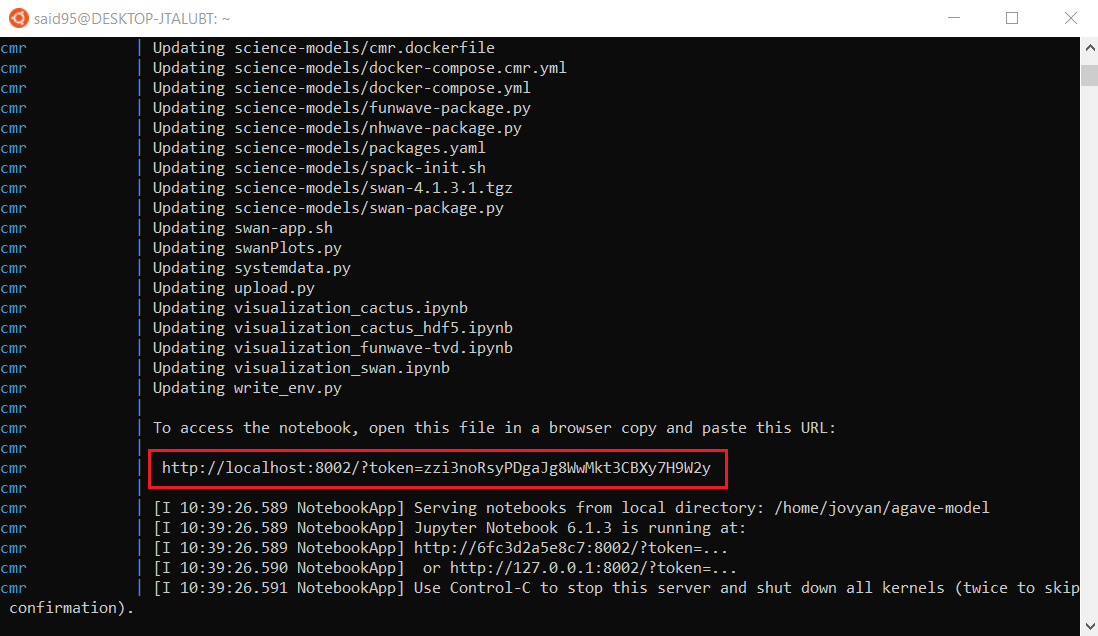
- Open your browser and paste the link.


Authenticating With Your TACC Account
- Get a Tapis/TACC account
- The Tapis/TACC software platform aims to help researchers more easily leverage powerful supercomputers and integrate and manage data from different and distant sources.
- You can create an Agave account on Agave Platform Webpage.
- You can create a Tapis/TACC account on TACC User Portal: https://portal.tacc.utexas.edu/account-request
Using the CMR
- You will get the following display from Jupyter Notebook:
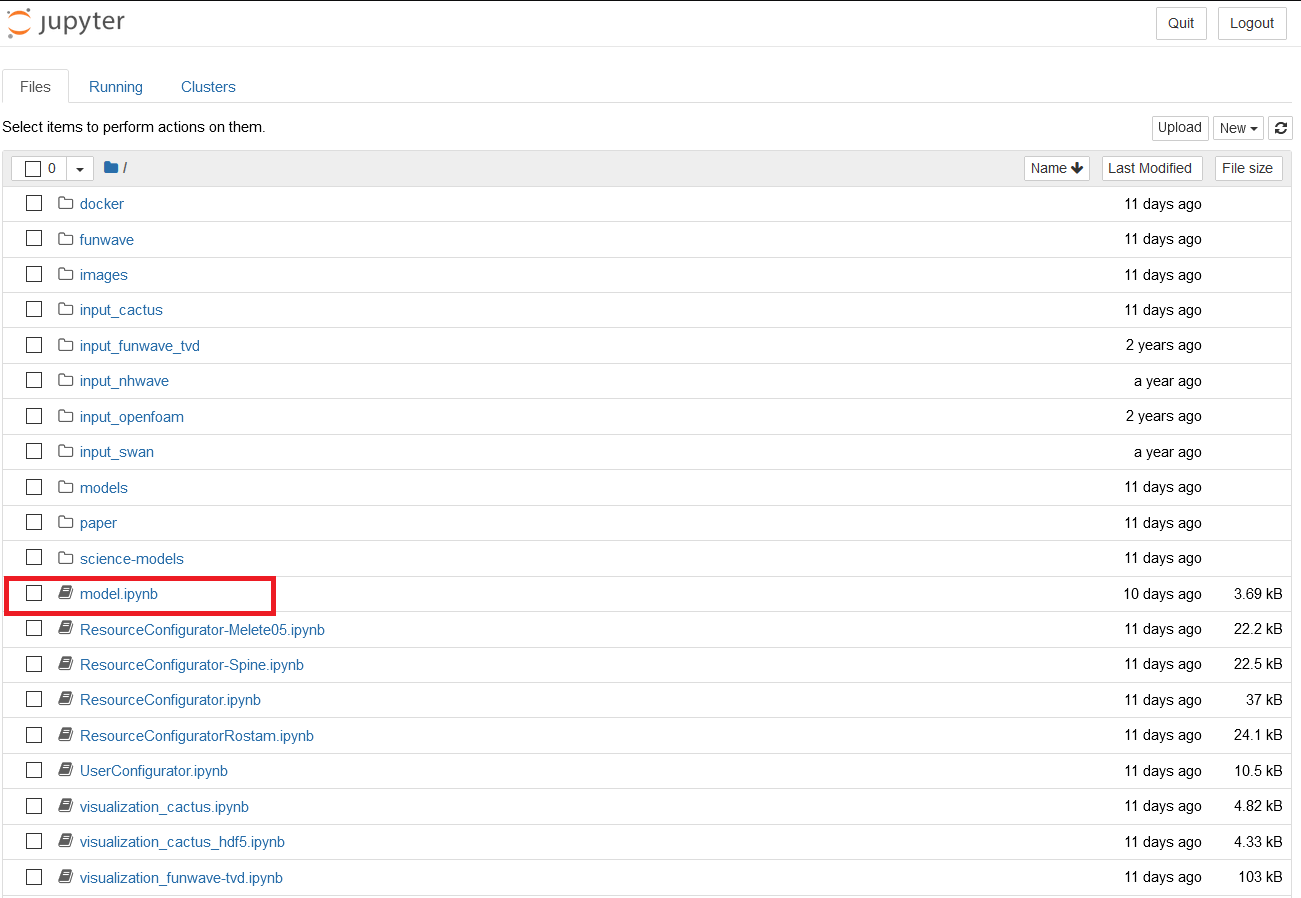
- Click on model.ipynb. This will open this window.
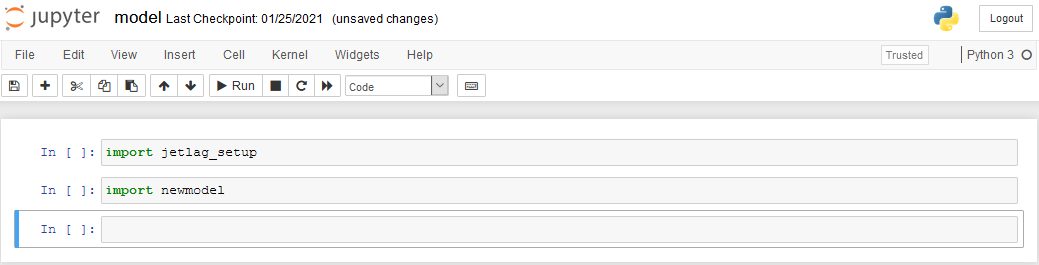
- If you get errors in the window, go to Kernel tab then choose Restart & Clear Output. You should get this window after doing that.
- You will get the following display from Jupyter Notebook:
- Click in the first cell “import jetlag_setup” and click Shift+Enter.
- The following output will show.
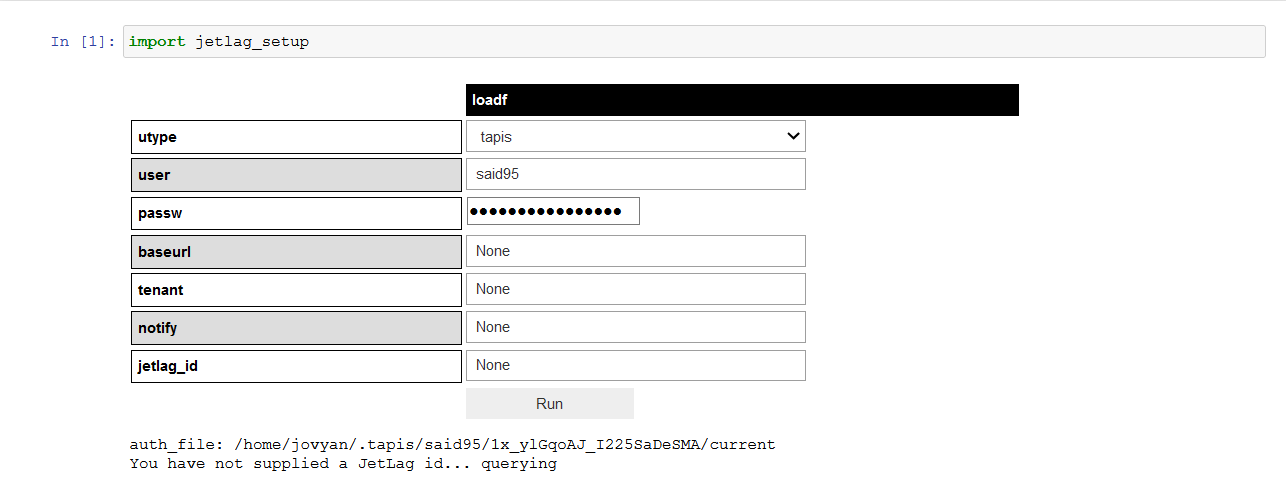
- Choose you login type (tapis/Agave).
- Type your username in the “user” box.
- Type your password in the “passw” box.
- Click on Run.
- The following output will show.

- To run jobs on Shelob, you’ll need permission. Please contact Dr. Steven R. Brandt at sbrandt@cct.lsu.edu with your Agave or Tapis username.
- Click on Run.
- Now click in the second cell “import newmodel” and click Shift+Enter.
- The following output will show.
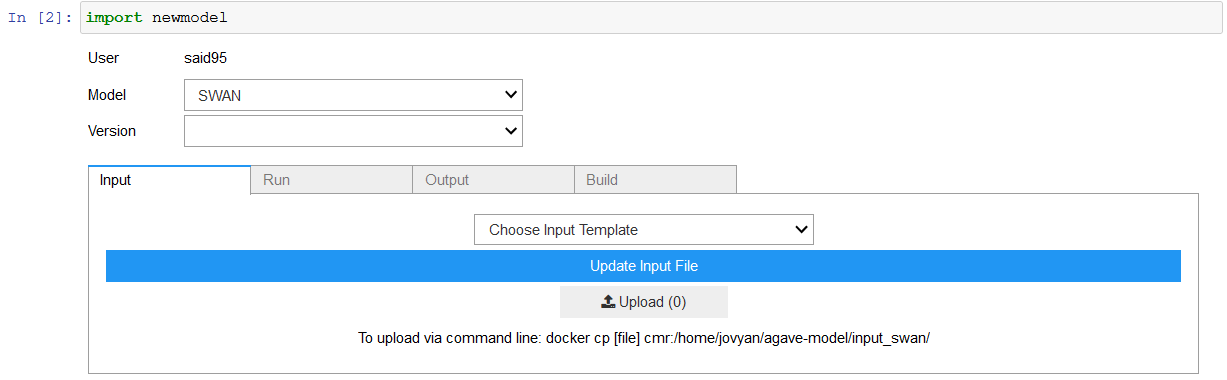
- Now you can Run all models from this window including: SWAN, Funwave_tvd, Delft3d, OpenFoam, Cactus and NHWAVE.
- Choose the model you want to run from the Model drop list and the Version of the model.
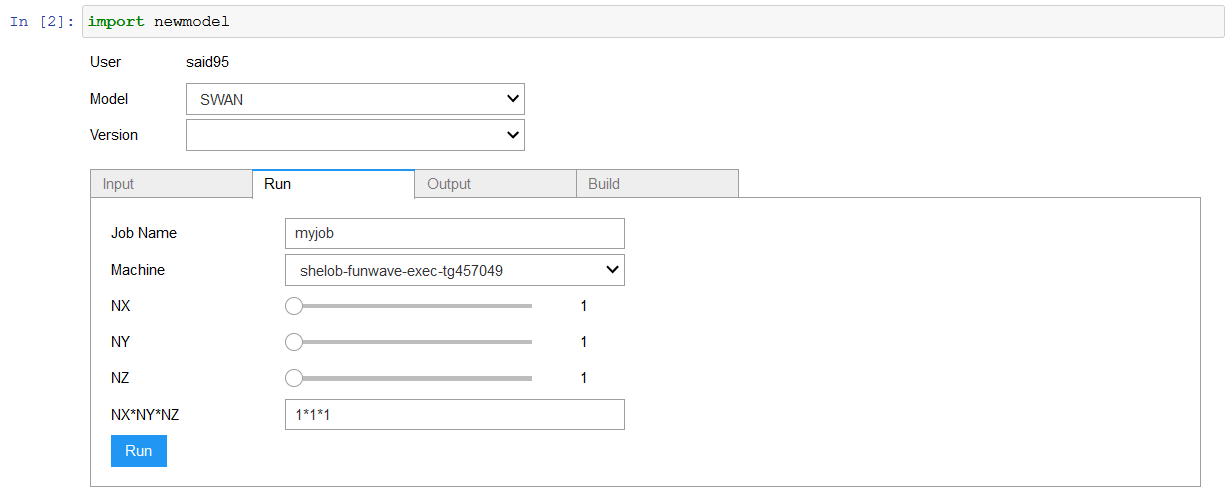
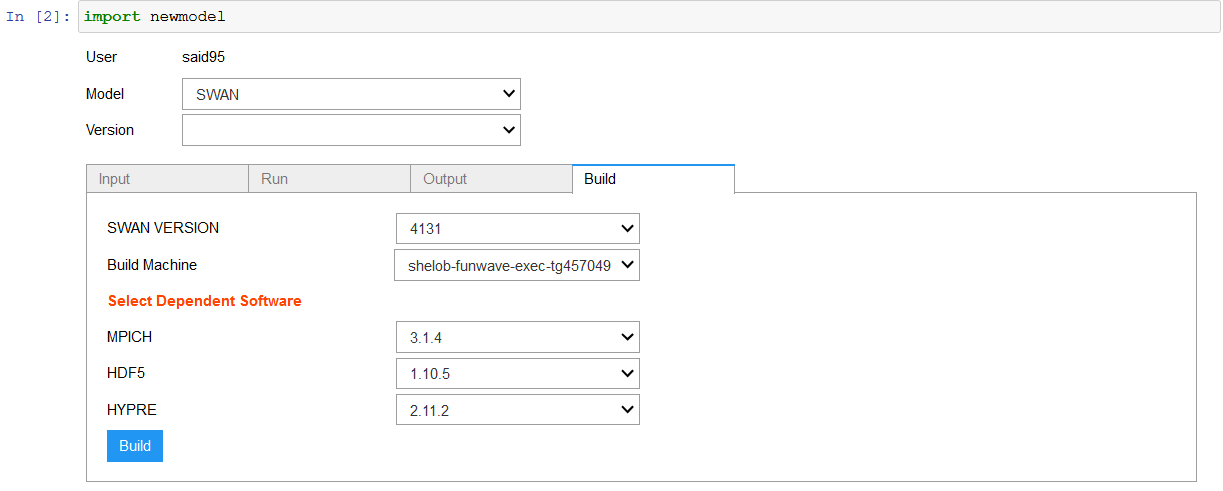
- There are 4 tabs in the CMR.
- Input Tab: for uploading the input files for your model
- Run Tab: You can control the number of process you want to run by adjusting NX, NY and NZ
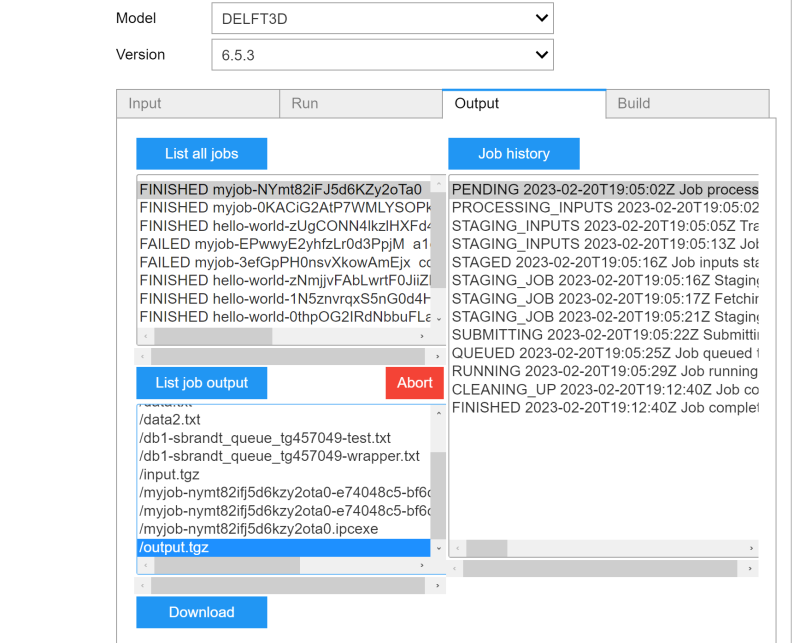
- Output Tab:
- List all jobs: gives you a list of all the jobs performed. You can refresh that list by clicking on the button again to see the state of the job.
- Job history: serves as a debugging tool.
- List job output: lists the outputs of the job. Look for the file that has an extension of “.out” and you can download the see the output.
- When a specific job is highlighted under "List all jobs" you can click "Job history" to see the Job's history. You can also click "List job output" to see the files on the remote machine. Selecting a file within this output and clicking download will download that file. If the file selected is "output.tgz" that file will automatically be untarred and its contents placed in $HOME/work/run_dir.
- Abort: to stop the job.
- Build Tab:


Installing New Models
Thanks to Spack integration, the CMR allows users to easily add new models.
Instructions
- Create a JSON File named "Model's Name_Model's Version.json" with your preferred text editor/IDE
- This file should detail the following:
- Model's Name
- Model's Spack Package Name
- Model's Version:
- This file should detail the following:
- Place the JSON File in "/science-models/JSONFiles/" directory
- Run the CMR
- The CMR should automatically detect the new models and will begin installing it on startup
#Example of JSON File Format:
{
  "name": "Model Name",
  "package": "Spack Package Name",
  "version": "Model Version"
}
References
- Shuai Yuan, Steven R. Brandt, Qin Chen, Ling Zhu, Reza Salatin, Rion Dooley, A sustainable collaboratory for coastal resilience research, Future Generation Computer Systems, Volume 111, 2020, Pages 786-792, ISSN 0167-739X, https://doi.org/10.1016/j.future.2019.11.002. (http://www.sciencedirect.com/science/article/pii/S0167739X1930295X)
- Abstract: Our goal is to create a cloud-ready repository of open-source coastal modeling tools which enable scientists and engineers to use high performance computers to study a variety of physical and ecological processes. The system we are building leverages Jupyter notebooks, Docker, Singularity, and the Agave Platform to create a platform for running jobs and analyzing data in a way that is (1) intuitive, (2) repeatable, (3) and collaborative. The paper describes the methodology to integrate the four technologies into the system that serves the coastal resilience research collaboratory. Four open-source numerical models are used to demonstrate the utility of the system. Simulation results of ocean waves generated by Hurricane Issac (2012), coastal wave evolution, and wave forces on a bridge deck are presented as an illustration. The sustainability of the collaboratory is discussed in detail.
- Thomas Kluyver, Benjamin Ragan-Kelley, Fernando Pérez, Brian E Granger, Matthias Bussonnier, Jonathan Frederic, Kyle Kelley, Jessica B. Hamrick, Jason Grout, Sylvain Corlay, et al., Jupyter notebooks-a publishing format for reproducible computational workflows., in: ELPUB, 2016, pp. 87–90.
- Rion Dooley, Steven R. Brandt, John Fonner, The agave platform: An open, science-as-a-service platform for digital science, in: Proceedings of the Practice and Experience on Advanced Research Computing, ACM, 2018, p. 28.
- Gregory M. Kurtzer, Vanessa Sochat, Michael W. Bauer, Singularity: Scientific containers for mobility of compute, PLoS One 12 (5) (2017) e0177459.
- Dirk Merkel, Docker: lightweight linux containers for consistent development and deployment, Linux J. 2014 (239) (2014) 2.
- Swan spectral wave model, http://swanmodel.sourceforge.net/.
- Funwave, https://fengyanshi.github.io/build/html/index.html.
- Tom Goodale, Gabrielle Allen, Gerd Lanfermann, Joan Massó, Thomas Radke, Edward Seidel, John Shalf, The cactus framework and toolkit: Design and applications, in: International Conference on High Performance Computing for Computational Science, Springer, 2002, pp. 197–227.
- Agnimitro Chakrabarti, Steven R. Brandt, Qin Chen, Fengyan Shi, Boussinesq modeling of wave-induced hydrodynamics in coastal wetlands, J. Geophys. Res.: Oceans 122 (5) (2017) 3861–3883.
- Open source field operation and manipulation, https://openfoam.com/.